SchematicaThe schematica mod will show you a hologram that can be used to rebuild or print an existing build from a schematic. To do this, however, the server has to have the Badlion Client ModAPI plugin installed and configured to allow schematica.
How to enable Schematica.Click esc to Open the Badlion Mod Slideout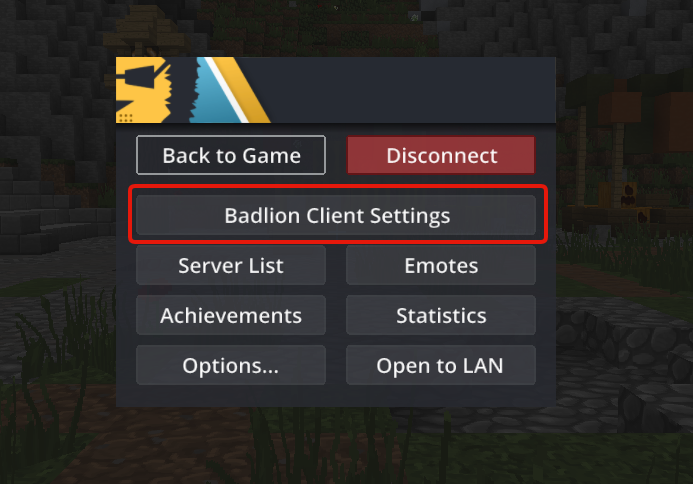 Search for “Schematica” (be sure to have it enabled like in the picture)
 -
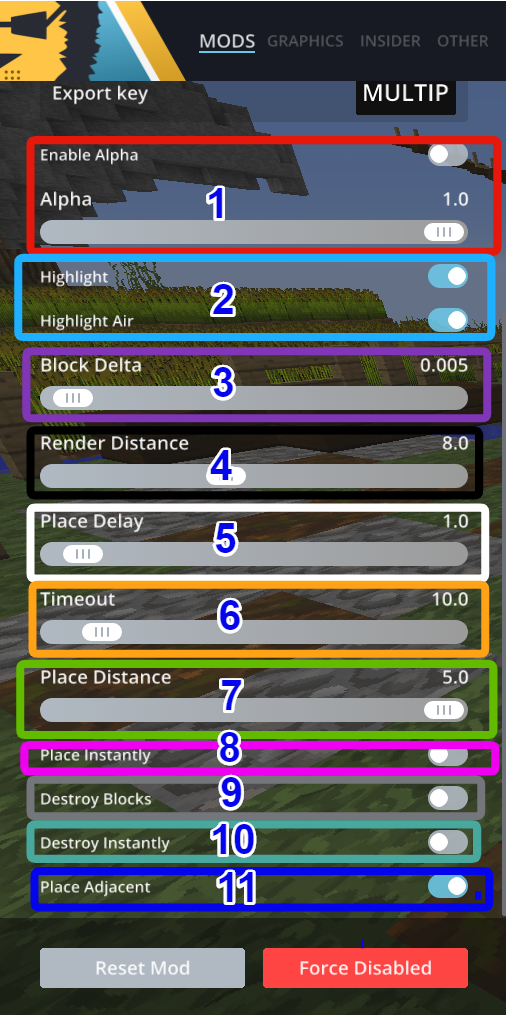
Servers might have it auto disabled if that’s the case you won’t be able in it 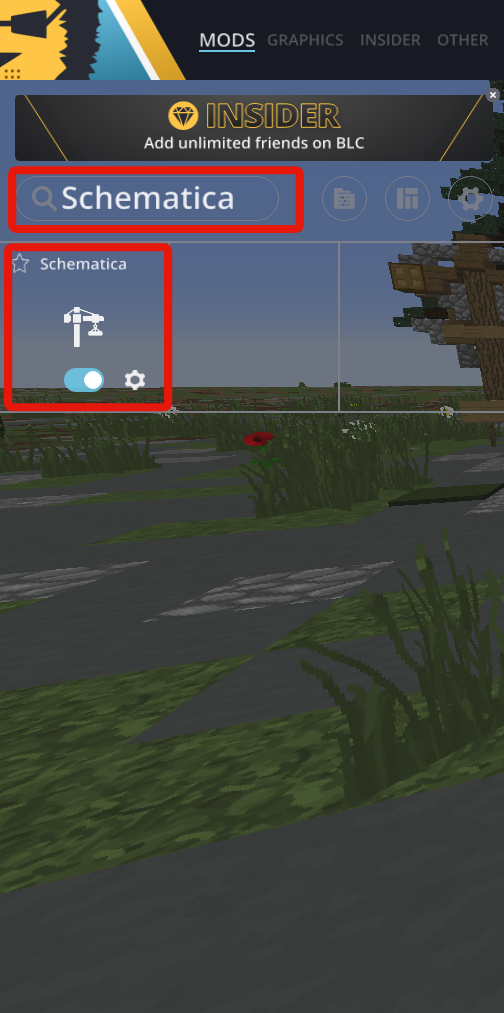 Schematica mod settings.The menu gives you various customizable settings like:
- Enabling Alpha to use the slider underneath to change the opacity of the hologram. Leaving it disabled would make the hologram at 100% opacity at all times.
- Enabling highlight (air) will give the to be placed blocks or air a blue color.
- The delta block slider to configure the value used for highlighting to prevent z-fighting. Z-fighting is a phenomenon that occurs if there are two textures on each other causing flashes.
- The render distance slider to configure the number of chunks being rendered, but using a high value will lower your FPS.
- The place delay slider to configure the interval between placing block sessions, the lower this amount the fast the printer option will place blocks.
- The timeout slider to configure the amount of time before retrying to place a block.
- The place distance slider to configure how far the printer will print out blocks for you.
- Enabling place instantly to make the printer to place all blocks that can be placed within one tick.
- Enabling destroy blocks to allow the printer to remove misplaced block using the fist or tools.
- Enabling destroy blocks instantly to allow the printer to remove misplaced blocks instantly, but is only effective in Creative mode.
- Enabling place adjacent to only print a block if there is already a placed block next to it.
 How can I obtain a schematic?
There are multiple ways to obtain a schematic file:
Download them from the internet and place them in windows + r -> %appdata% -> .minecraft ->"schematics" folder.https://cdn.discordapp.com/attachments/192425556338278400/624854773232828416/a104962646f9a8204102d36d3c28eb6a.mp4
How can I make a schematic?Press the multiply key on your number pad. -
This hotkey may vary, therefore you should go to your schematica settings to find yours.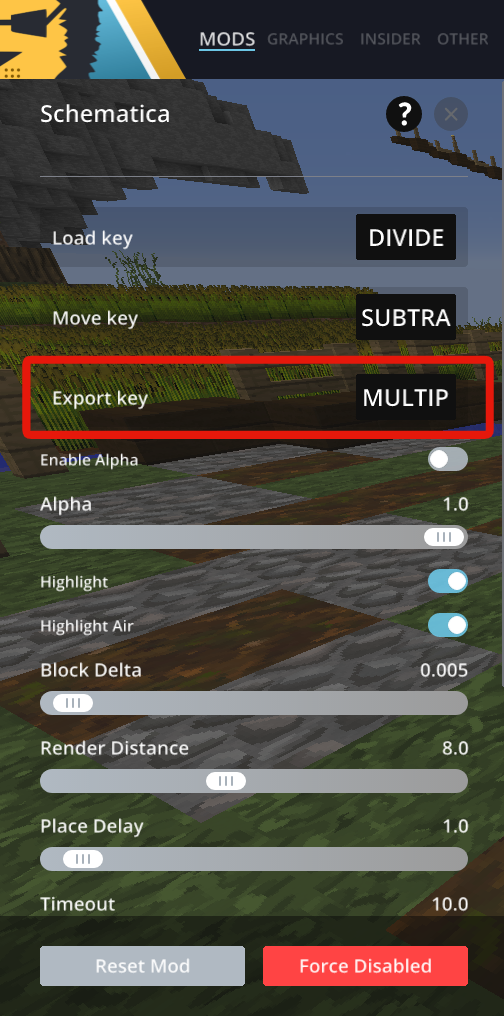 Enter the coördinates of one corner from the building under “Red Point” and the other corner under “Blue Point” or pres “Red Point” or “Blue Point” to change the coördinates to your current coördinates.
https://cdn.discordapp.com/attachments/192425556338278400/624852515204104202/a1d55b09ebcc49c0ded26bc0a3321ae4.mp4
Press the “Off” button to show the outlining of the schematica.https://cdn.discordapp.com/attachments/192425556338278400/624853045125316618/7fc425d492153705061f3eac831bf963.mp4
If you’re satisfied with the result, enter a name for the schematica and press then “Save”.https://cdn.discordapp.com/attachments/192425556338278400/624853523234029578/f57802d648ee682c5258c486ed7b01a7.mp4
How to load in a schematic?Press the divide key on your number pad. -
This hotkey may vary, therefore you should go to your schematica settings to find yours.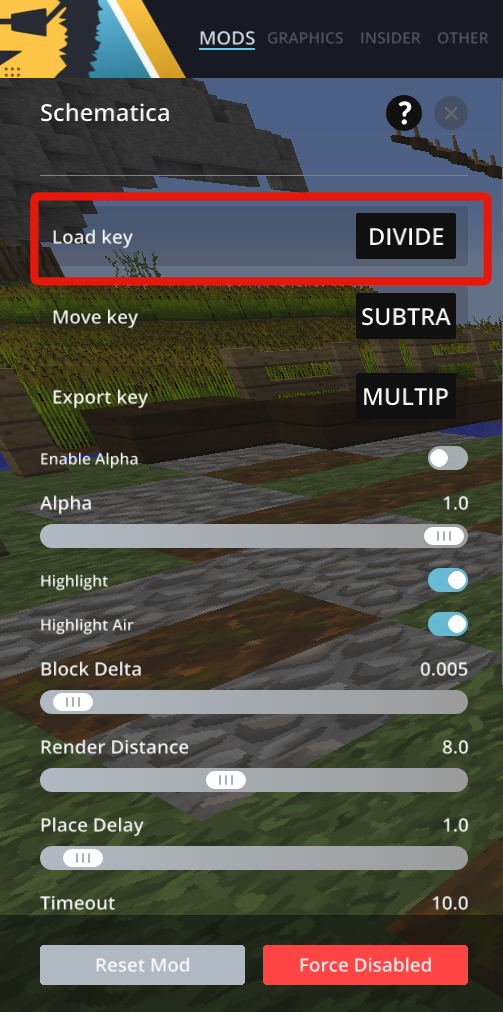 Press on the schematic you want to load in on the menu.Press on “Done” to load in your schematica.
https://cdn.discordapp.com/attachments/192425556338278400/624789287480852500/Screenshot_6.png
https://cdn.discordapp.com/attachments/192425556338278400/624844593858478080/9d9fbe4c7d136b42fa6ed79c0de828ed.mp4
How do I move the hologram?Press the substract key on your number pad. -
This hotkey may vary, therefore you should go to your schematica settings to find yours.https://cdn.discordapp.com/attachments/192425556338278400/625005921554268211/Screenshot_2.png
The menu gives you various customizable settings like:- The materials button to show you the amount and the required materials to finish the build.
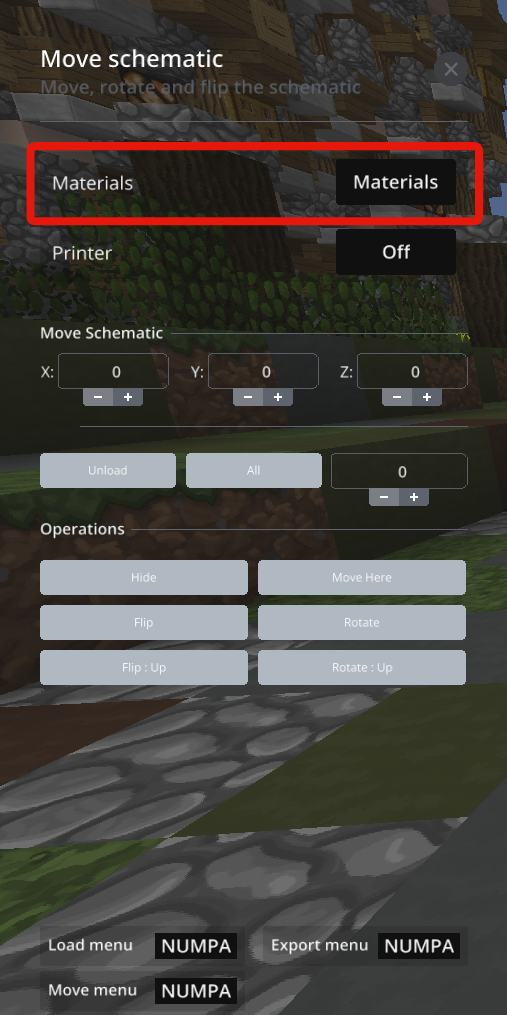
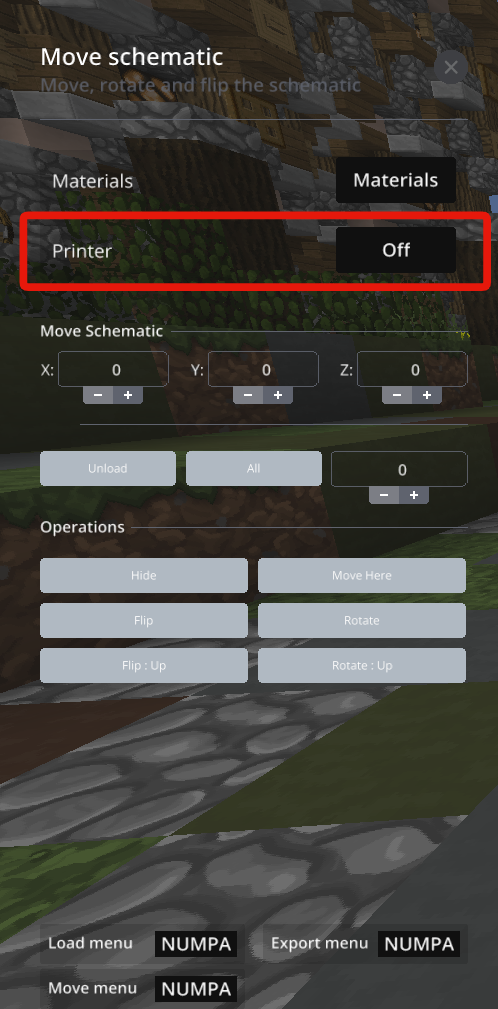
- Enabling printer mode to let the mod place the blocks automatically.
- Servers need to have the Badlion Client ModAPI installed and configured to allow printer mode.
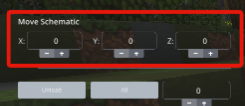
- Changing the XYZ coördinates by inserting a number manually or using the + and - buttons.
- The unload button to unload the schematic, but you’ll have to load in the schematic again the next time.
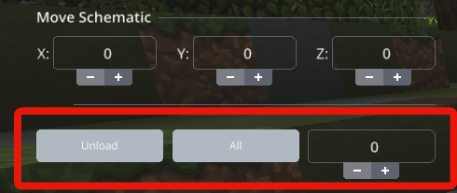
- Showing all layers, underneath a certain layer or specific layers from the hologram.
https://cdn.discordapp.com/attachments/192425556338278400/624791987802996777/Screenshot_1.png
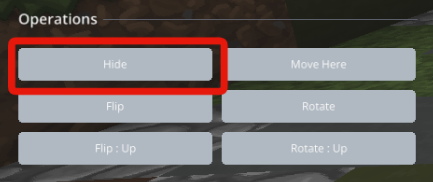
- The hide button to hide the hologram temporarily until you press on it again.
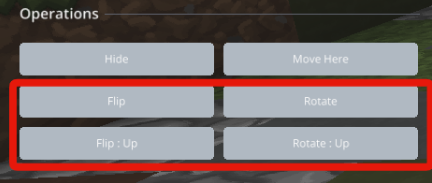
- The flip and rotate button to flip/rotate the hologram to the side you like by using the button underneath it.
Here is a video demonstrating each of the functionshttps://cdn.discordapp.com/attachments/215952141242728450/625005624106811432/2019-09-20_23-13-03.mp4
